
What are some common problems that occur in seminars? We'll explain the causes and solutions in an easy-to-understand way.
Various problems can occur during seminar streaming or recording, such as no sound, video freezing, materials not displaying, and participants being unable to enter the session.
If preparations and role assignments are insufficient when the event takes place, the proceedings on the day may come to a halt, potentially leading to a decline in the company's credibility.
This article explains common problems that occur in seminars, their causes, and preventative measures you can take beforehand.
LIFE.14 provides video, audio, and streaming support for corporate events and seminars.
If you have any concerns regarding streaming, filming, or sound, please feel free to contact us from the planning stage.

Seminar problems often stem not from mistakes made on the day, but from insufficient preparation.
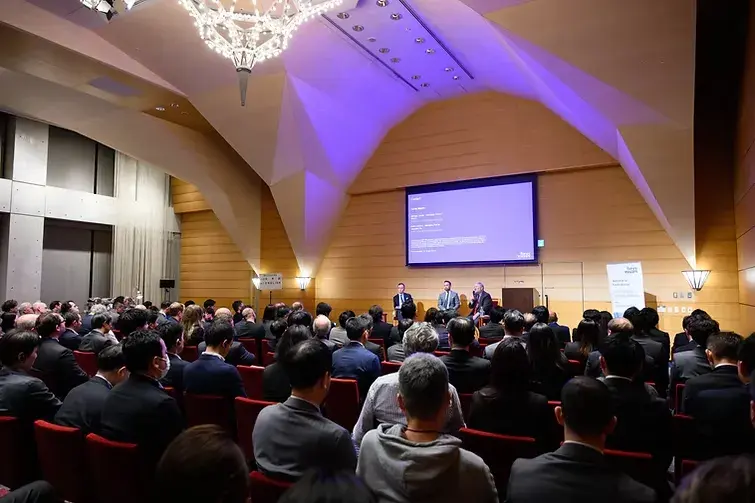
Trouble during a seminar isn't always caused solely by mistakes made by the person in charge on the day.
In reality, many cases are caused by insufficient pre-event checks or inadequately planned audio, video, and streaming configurations.
For example, even if the sound is audible without any problems at the venue, it may not be reaching online participants.
Furthermore, even if the speaker is visible, there may be delays in switching between materials, or the audio may be missing from the recorded data.
The following are common reasons for insufficient preparation that can lead to problems at seminars:
We tend to think of audio, video, and streaming as separate things.
Although there is a schedule, the timing of equipment operation has not yet been decided.
Too few people are handling tasks such as reception, speaker support, and live stream verification.
It hasn't been decided who will make the decision when a problem occurs.
To prevent problems during a seminar, it's crucial to consider audio, video, and streaming as an integrated system during the preparation phase, rather than relying solely on on-the-day response capabilities.
Organize the schedule, equipment operation, and the roles of each person in charge to reduce anxiety and confusion during the actual event.
Common problems that occur in seminars
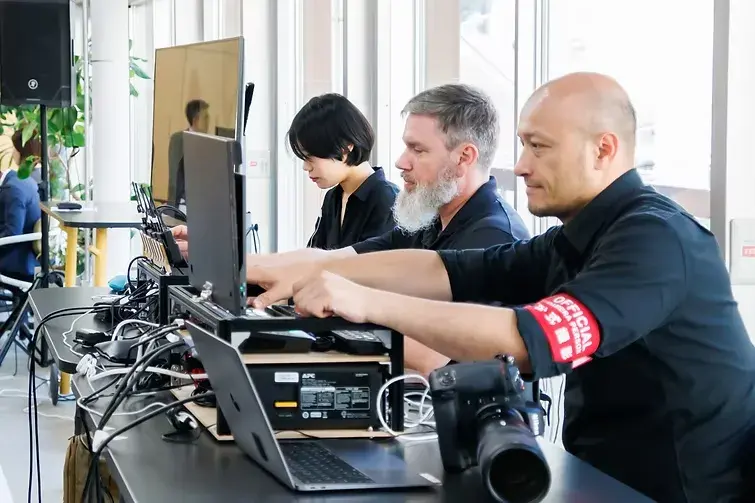
Common problems that occur in corporate seminars can be broadly categorized into the following five categories:
Audio trouble
Video trouble
Streaming trouble
Trouble related to speakers
Participant support issues
Below, we will take a closer look at the problems that commonly occur during seminars.
Audio trouble
The following are some common audio-related problems:
The microphone isn't picking up any sound.
The speaker's voice was quiet.
The sound is distorted or muffled.
Howling occurs
Audio is not reaching online participants.
The recorded data does not contain audio.
The audio is difficult to understand because it's a mix of interpreter's voice and venue noise.
When these kinds of problems occur, it becomes difficult for participants to understand the content.
One situation that requires particular attention is when something is audible at the venue but not in the live stream or recording.
Even if sound is coming from the venue's speakers, that doesn't necessarily mean that the sound is being correctly captured by the streaming computer or recording equipment.
Furthermore, feedback is more likely to occur when the microphone and speaker are placed too close together, or when the volume is turned up too high.
If the microphone continues to pick up sound from the speaker, it can produce an unpleasant high-pitched noise, sometimes forcing you to stop the process.
Audio is essential for participants to understand the seminar content.
It's just as important to allocate time for audio checks as it is for preparing videos and materials.
Video trouble
The following are some common problems that can occur with video:
The speakers' faces look gloomy.
The camera's field of view is off.
The text on the slides is too small to read.
Document sharing is not working properly.
Videos and animations stutter.
The image captured from the screen is overexposed (white).
The necessary screen is not present in the recorded video.
For example, if there is a window or strong lighting behind the speaker, their face may appear dark due to backlighting.
Furthermore, if the camera position is too low or too high, the resulting footage can easily feel unnatural to viewers.
Regarding the materials, while they may be readable on the venue screen, the text may appear too small for participants viewing them on smartphones or laptops.
It's important to avoid cramming too much text into slides and to adjust the size so that they are easy to read when shared on the screen.
The video is an important element that affects participants' concentration and comprehension.
Conduct test broadcasts or trial recordings beforehand to check how it looks on the viewer's screen.
Streaming trouble
The following are some of the common problems that can occur with live streaming:
The stream stopped midway.
The video and audio are out of sync.
The screen sharing is not visible to the participants.
I mixed up the presenter's URL and the participant's URL.
Participants cannot enter the room.
I forgot to press the record button.
The recording data does not contain the necessary audio or video.
A common cause of streaming problems is insufficient network connection testing.
Even if you are connected to the venue's Wi-Fi, it doesn't necessarily mean that the connection will be stable enough for live streaming.
Communication may be unstable if other users are using the same network or depending on the venue's location.
Also, care must be taken to avoid errors in providing the streaming URL.
If the URLs for speakers, participants, and administrators are different, sending the wrong URL may result in users being unable to enter the room or their permissions not being correctly reflected.
In online and hybrid seminars, if the broadcast stops, participants will not be able to follow the content.
Furthermore, if the number of participants who are unable to enter the room increases, the organizers will be overwhelmed with inquiries from the very beginning, which will negatively impact the progress of the seminar itself.
Streaming requires checking not only the equipment, but also the network connection, tool settings, URL management, and recording settings.
Trouble related to speakers
Problems related to speakers are often caused not by the streaming equipment itself, but by a lack of prior confirmation with the speakers.
The following are some of the common problems that can occur with speakers:
The speaker is unable to connect.
The speaker enters the room as a participant.
The document format is incompatible and cannot be displayed.
Slides with videos or audio do not play.
I don't know how to use the microphone.
Camera positions and standing positions are not yet decided.
The flow and movements change between rehearsals and the actual performance.
Especially for online presentations, you need to confirm details such as which URL the presenter will use to access the presentation, which account (contract plan and permissions) they will use, and how they will set their display name for the day.
If the instructions remain vague, it can lead to problems such as being unable to enter the room, not being granted permissions, or being unable to share your screen right before the event.
Furthermore, it's important not only to have the documents submitted in advance, but also to verify that they can actually be opened in the production environment.
The playback quality of materials containing video or audio may vary depending on the computer or streaming tool used.
If the speakers are external guests, it's a good idea to provide them with some basic informational materials or a checklist, as their devices, internet connections, and familiarity with online tools will vary.
Participant support issues
The following are some of the problems that are likely to occur when dealing with participants:
I don't know how to enter the room.
Incorrect start time or URL
I can't hear the sound.
Images and documents are not visible.
I don't know how to use the chat or Q&A features.
I don't know who to contact.
There were so many questions that the speakers couldn't answer them all.
These problems can occur not only due to user error on the part of the participants, but also due to insufficient prior notification.
For example, if you only send a participation URL, but don't include the entry time, recommended system requirements, how to ask questions, or contact information in case of problems, you're likely to receive a flood of inquiries on the day of the event.
Please clearly communicate to participants how to participate and who to contact in a reminder email sent before the event.
Seminar problems can arise not only from technical factors such as sound, video, and streaming, but also from poor communication, such as insufficient information provided to speakers and participants.
By confirming details and assigning roles in advance, we can reduce confusion on the day of the event and create a seminar that is easy for participants to understand and listen to.
Things to check in advance to prevent problems at the seminar
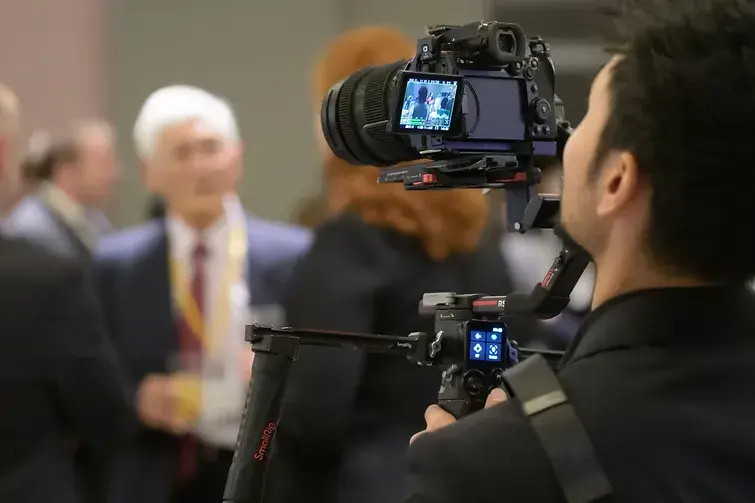
To reduce problems during a seminar, it's important not only to handle things on the day of the event, but also to organize a list of items that need to be checked in advance.
The main items you should check beforehand are as follows:
Venue facilities
Streaming environment
Speaker materials
Audio equipment
Photography equipment
Role assignments for the day
Below, we'll take a closer look at the points you should check before the seminar.
LIFE.14 provides comprehensive support, from filming and streaming on the day of the seminar to checking venue facilities, streaming environment, and audio/filming equipment.
If you have any concerns about the technical aspects during the preparation stage, please feel free to contact us.
Venue facilities
Regarding venue facilities, first check whether the necessary environment for the seminar is in place.
Power supply, sound equipment, projector, screen, lighting, and internet connection are all essential for the day's proceedings.
For example, problems such as insufficient power outlets, extension cords not reaching, poor screen visibility, or dim venue lighting become difficult to address if discovered just before the event.
Furthermore, even if a venue has existing sound equipment, it doesn't necessarily mean it can be connected to streaming or recording equipment.
When inspecting the venue, be sure to check the items listed in the following table.
Check items | Contents to be confirmed |
power supply | Is there a power outlet near where the equipment will be placed? - Are there enough units available? |
Sound equipment | - Availability of microphones, speakers, and sound mixing console at the venue • Connection method |
Video equipment | Projector, screen, and monitor placement and viewing |
illumination | - Will the speakers' faces look gloomy? Is the screen easy to see? |
Line | - Presence and location of a wired LAN port (or dedicated line) Do you have an internet connection that can be used for streaming? |
flow line | Will the movements of the speakers, staff, and cameras clash? |
Setup time | Can we secure enough time for equipment delivery, wiring, and rehearsals? |
If simultaneous interpretation or filming with multiple cameras is required, an interpreter's booth and equipment operation space will also be necessary.
When booking a venue, it's important to check not only the number of attendees, but also the space needed for equipment and staff movement.
Streaming environment
In the streaming environment, we will check the streaming tool to be used, the entry URL, the internet connection, how the streaming screen looks, and the backup system.
In online and hybrid seminars, insufficient preparation of the delivery environment directly leads to viewing problems for participants.
Please check the following points regarding your streaming environment.
Check items | Contents to be confirmed |
Distribution tools | Tools to use ·account ・Streaming settings |
Entry URL | - For speakers ・For participants - For administrative purposes |
Line | Connection status at the actual venue |
Backup line | How to switch during a network problem |
Streaming screen | How it looks to viewers on other devices |
Voice verification | Is the audio reaching the recipient? |
Recording settings | How to start recording ・Save destination Recording target |
If possible, use a wired connection, and it's also a good idea to have a backup mobile data plan ready for peace of mind.
It's important not to judge the streaming environment solely based on what the organizers see on their screen.
Always check the participants' screens on a separate device to ensure that materials, speakers, audio, chat, and Q&A functions are working as expected.
Speaker materials
It's not enough to simply receive the presenter's materials in advance; you also need to verify that they display correctly in the actual production environment.
The following are the points you should check in the presenter's materials:
Check items | Contents to be confirmed |
File format | Supported formats include PowerPoint, PDF, and video files. |
Can it be displayed? | Can it be opened on the computer or streaming environment that will be used for the actual event? |
font | Check for garbled characters or layout issues. |
Video and audio | Can it be played? Will the sound reach the streaming destination? |
Slide readability | Is the font too small? Is it too much information packed in? |
Switching method | Will the presenter be the one to operate it? Will the management team handle it? |
Preliminary data | Prepare alternative document formats and backup data. |
It's important that the organizers review the materials beforehand, rather than leaving it entirely up to the speakers.
Rehearsing before the actual presentation, where you play the slides and check the transitions and video playback, can reduce anxiety on the day of the presentation.
Audio equipment
Audio is one of the important elements in conveying the content of a seminar.
Even if the visuals are clear, if the sound is difficult to hear, participants' understanding will be diminished.
The things you should check regarding audio equipment are as follows:
Check items | Contents to be confirmed |
Number of microphones | Number of speakers, moderators, and participants required for the Q&A session |
Types of microphones | • Lavalier microphone • Handheld microphone Desktop microphone etc. |
Spare microphone | Securing a spare in case of malfunction or battery failure (and confirming the replacement procedure) |
Speaker location | Is the arrangement designed to minimize feedback? |
Audio streaming | Is your voice reaching the recipient of the broadcast? |
Recorded audio | Does the recorded data contain the necessary audio? |
Cables | • Spare cable • Conversion adapter ·battery etc. |
To prevent feedback, it's important to keep the microphone and speaker at a safe distance and mute any microphones that aren't in use.
If the speaker will be moving around while speaking, make sure to check during rehearsal that the microphone position and volume remain consistent.
Photography equipment
If you plan to record a seminar for later use, it's important to decide beforehand what you want to record and how you want to record it, rather than simply recording it without any prior planning.
The things you should check regarding your camera equipment are as follows:
Check items | Contents to be confirmed |
Number of cameras | Are there enough cameras available to capture the necessary angles (viewpoints) for the speakers, materials, and the entire venue? |
Angle of view | Will the presenter's face, upper body, and materials be clearly visible? |
illumination | Will it make my face look dark? - Is it backlit? |
Recording method | - Individual recording on the camera body (local recording) - Cloud recording of streaming tools (such as Zoom) - Backup recording using an external recorder |
Save destination | SD card External storage • PC etc. |
Backup equipment | • Spare battery Backup media ・Charger |
Test recording | Are the video and audio recorded correctly? |
Filming equipment is one of the things that is difficult to recover from if it stops working during filming.
For long seminars, pay attention not only to battery life and recording capacity, but also to equipment overheating, and prepare backup recordings as needed.
Role assignments for the day
On the day of the seminar, you will need to manage multiple tasks simultaneously, including facilitating the event, streaming, filming, sound, and assisting participants.
The main roles and responsibilities are as follows:
role | Main actions taken |
progress management | Manage the time schedule, speaker turn order, and break times. |
Host/MC | I will manage the seminar, introduce the speakers, and guide the Q&A session. |
Speaker support | Confirm that the speaker has entered the room, attaches their microphone, and checks their materials. |
Distribution Manager | Check the streaming screen, audio, network connection status, and recording status. |
Photography | Check the camera's field of view (angle), recording start/stop, battery level, and recording media capacity. |
Sound engineer | Check microphone volume, feedback, and venue sound. |
Participant support | We handle entry problems, chat, and inquiries. |
Q&A Staff | Organize the questions and share them with the moderator and speakers. |
Even with a small number of staff, concentrating too much responsibility on one person can lead to delays in noticing problems.
For example, if you're handling reception duties while simultaneously checking the live stream and assisting the speakers, you might not be able to immediately notice audio problems or recording errors.
During the actual seminar, it's a good idea to have separate roles for each person: one to oversee the progress, one to manage the equipment, and one to assist the participants.
In addition, the schedule should include not only "what to do and when," but also "who will check what."
Setting specific times to review the presentation—before it starts, when speakers change, before the Q&A session, and before it ends—makes it easier to prevent omissions and errors.
To prevent problems during a seminar, it's crucial to prepare not only for equipment and network connections, but also for the movements and roles of the people involved.
By conducting pre-event checks and assigning roles, we can not only make quicker decisions during the actual event but also ensure that participants can watch with peace of mind.
Examples of seminars that LIFE.14 has been involved in
To prevent problems during a seminar, it's important to design the entire event in line with its objectives, rather than considering audio, video, and streaming separately.
Here, we will introduce two examples of seminars that LIFE.14 has been involved in.
Filming and streaming of hybrid events
Filming and editing activity records of corporate seminars.
Let's take a closer look at each case below.
Filming and streaming of hybrid events

We'd like to introduce "Sparkup Talk // Challenges of Hybrid Events: Engagement," a hybrid event for which LIFE.14 handled the filming and distribution.
This event featured presentations and panel discussions by speakers on topics such as the challenges of online and hybrid events, methods for enhancing participation, and the use of augmented reality (AR).
It wasn't enough to simply show what was happening at the venue; the way we delivered the video and audio was crucial to give online participants the feeling that they were actually participating in the event.
In hybrid events, even if everything runs smoothly at the venue, problems can occur online, such as difficulty hearing the sound, difficulty seeing the speakers' expressions, or a lack of conveyance of the venue's atmosphere.
Therefore, it is necessary to assemble the filming, audio, and streaming while simultaneously checking the progress of the event at the venue and how it looks on the streaming screen.
LIFE.14 was in charge of filming and distribution, and the content was also distributed to overseas viewers through the distribution platform "Sparkup" by Margency Co., Ltd.
In hybrid events, if you only focus on preparing for the physical venue, you tend to neglect how things will look and sound for online participants.
By checking the streaming screen and audio flow in advance, you can create a seminar that is easy to understand regardless of where participants are located.
Filming and editing activity records of corporate seminars.

LIFE.14 also handles the filming and editing of activity records for corporate seminars.
For example, at a seminar for companies held by the UNHCR Association of Japan on the theme of "Humanitarian Assistance and ESG," we filmed and edited the event as a video record so that participants could look back on the day's events later.
In these kinds of documentary videos, simply filming the speakers is not enough.
It's important to capture moments that convey the seminar's purpose and value, such as the atmosphere of the venue, the expressions of the participants, the speakers' remarks, and the scenes of breakout sessions and networking.
On the other hand, when shooting documentary footage, if you start filming without deciding what scenes you want to capture, you may miss important statements or participants' reactions.
Activity recording videos can be used for internal sharing and public relations after the event, as well as for reporting materials for future events.
Therefore, it is important to clarify "what you want to capture" and "who the video is for" before filming begins.
By deciding on the shooting content and editing policy according to your purpose, you can more easily create a video that is easy to use later on.
To ensure smooth troubleshooting on the day of the seminar, it's crucial to have a technical representative on-site!
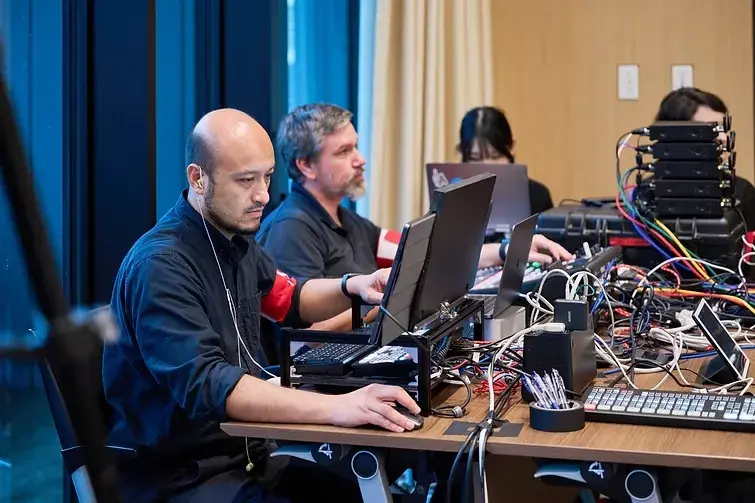
Even with thorough preparation, unexpected problems can still occur on the day of a seminar.
Therefore, on the day of the event, it is important not only to "prepare to prevent problems from occurring," but also to "have a system in place to respond immediately if problems do occur."
Here are some key points to keep in mind to ensure a smooth handling of any problems that may arise on the day of the event:
Place someone who keeps watching the live stream screen.
We will have a technical staff member who can handle the equipment.
Prepare backup equipment.
On the day of the seminar, it's reassuring to be prepared for the possibility of unexpected problems occurring.
Having someone to monitor the live stream, a technical staff member who can handle the equipment, and readily available backup equipment makes it easier to calmly deal with any unexpected problems.
To prevent problems at your corporate seminar, hire a professional with a proven track record!

To prevent problems during corporate seminars, it's crucial to design the entire process—including audio, video, streaming, and filming—as a cohesive whole, rather than considering them separately.
In particular, pre-event planning becomes even more crucial for online streaming, hybrid seminars, and events requiring multilingual support.
For example, if you don't separate and organize the sounds heard at the venue, the sounds delivered to online participants, the sounds recorded, and the audio for interpretation, it may become difficult for participants to hear, or the recorded video may be difficult to use later.
LIFE.14 provides technical support for corporate events and seminars, including audio, video, online streaming, photography, and simultaneous interpretation equipment.
If you're thinking, "I want to prevent streaming problems," "I want to discuss filming and streaming all in one place," or "I want to run a multilingual event safely," please feel free to contact us from the planning stage. Multilingual/International Event Video Streaming and Live Streaming & Technical Operations for Multilingual & International Events | LIFE.14 Inc. | # International Forum Events Tokyo


![[Photography and video production] EU-Japan Centre for Industrial Cooperation "55th WCM Program"](https://static.wixstatic.com/media/a17cef_25b5f3045e9b455bb15e20b677bd5fbc~mv2.jpeg/v1/fill/w_1000,h_1000,fp_0.50_0.50,q_30,blur_30,enc_avif,quality_auto/a17cef_25b5f3045e9b455bb15e20b677bd5fbc~mv2.jpeg)
![[Photography and video production] EU-Japan Centre for Industrial Cooperation "55th WCM Program"](https://static.wixstatic.com/media/a17cef_25b5f3045e9b455bb15e20b677bd5fbc~mv2.jpeg/v1/fill/w_1168,h_1168,fp_0.50_0.50,q_90,enc_avif,quality_auto/a17cef_25b5f3045e9b455bb15e20b677bd5fbc~mv2.jpeg)


Comments